
DAG Run Outputs
Collect and access step outputs from completed DAG runs.
Overview
When a DAG run completes, all step outputs are automatically collected into a structured outputs.json file. This provides a consolidated view of what each run produced, enabling:
- Audit trails - Track what each DAG run produced
- Debugging - Inspect outputs from completed runs
- Integration - Fetch outputs via API for downstream systems
- Reporting - Generate reports from aggregated outputs
Flow: Step Output → Collection → outputs.json → Web UI / API
Defining Step Outputs
Simple String Form
Capture command output to a variable:
steps:
  - name: get-version
    command: cat VERSION
    output: VERSION

  - name: count-records
    command: wc -l < data.csv
output: RECORD_COUNTThe command's stdout (trimmed) becomes the output value in outputs.json:
{
  "outputs": {
    "version": "1.2.3",
    "recordCount": "42"
  }
}Object Form
For more control, use the object form with additional options:
steps:
  # Custom key name in outputs.json
  - name: get-count
    command: echo "42"
    output:
      name: TOTAL_COUNT
      key: totalItems  # Uses "totalItems" instead of default "totalCount"

  # Exclude from outputs.json (still usable within the DAG)
  - name: internal-step
    command: echo "processing"
    output:
      name: TEMP
omit: true # Available as ${TEMP} but not saved to outputs.jsonObject form properties:
| Property | Required | Description |
|---|---|---|
name | Yes | Variable name to capture (same as string form) |
key | No | Custom key for outputs.json. Default: variable name converted to camelCase |
omit | No | When true, output is usable within the DAG but excluded from outputs.json |
Output Collection
How It Works
- Step execution - Command runs and produces output
- Output capture - Value captured to the specified variable
- DAG completion - When all steps finish, outputs are collected
- File creation -
outputs.jsonwritten with all collected outputs
Key Naming
Output keys are automatically converted from SCREAMING_SNAKE_CASE to camelCase:
| Variable Name | Output Key |
|---|---|
VERSION | version |
TOTAL_COUNT | totalCount |
API_RESPONSE | apiResponse |
MULTI_WORD_NAME | multiWordName |
Override with the key property:
output:
  name: TOTAL_COUNT
key: itemCount # Uses "itemCount" instead of "totalCount"Conflict Resolution
When multiple steps output to the same key, the last value wins based on execution order:
steps:
  - name: step1
    command: echo "first"
    output: RESULT

  - name: step2
    command: echo "second"
    output: RESULT
depends: [step1]The final output will be "result": "second".
Accessing Outputs
Web UI
Navigate to a DAG run and click the Outputs tab to view collected outputs:
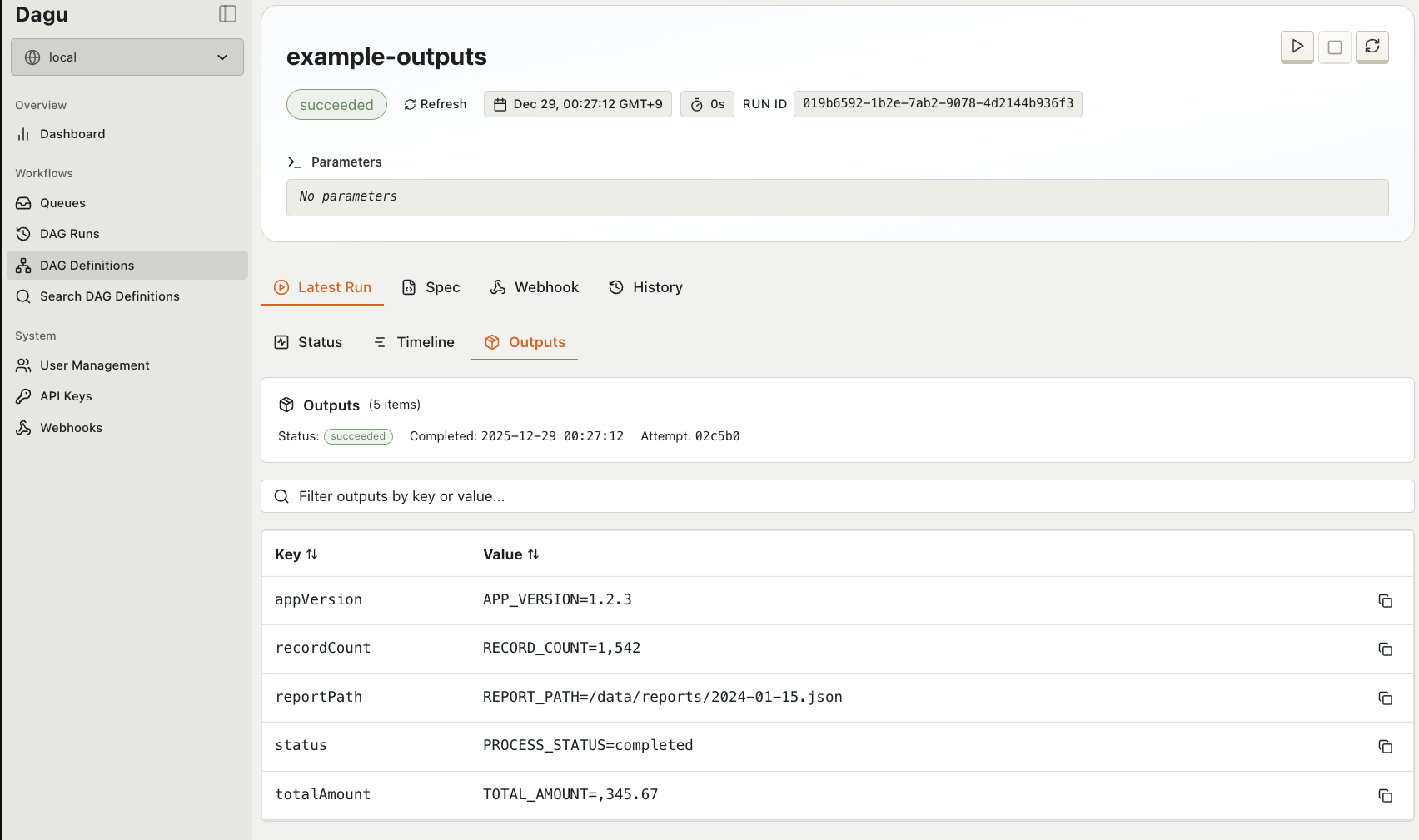
The Outputs tab displays:
- All collected key-value pairs
- Metadata (DAG name, run ID, status, completion time)
- Copy-to-clipboard functionality for individual values
REST API
Retrieve outputs programmatically:
GET /api/v2/dag-runs/{name}/{dagRunId}/outputsExample request:
curl http://localhost:8080/api/v2/dag-runs/my-workflow/abc123/outputsExample response:
{
  "metadata": {
    "dagName": "my-workflow",
    "dagRunId": "abc123",
    "attemptId": "attempt_001",
    "status": "succeeded",
    "completedAt": "2024-01-15T10:30:00Z",
    "params": "{\"env\":\"prod\"}"
  },
  "outputs": {
    "version": "1.2.3",
    "recordCount": "1000",
    "resultFile": "/data/results.json"
  }
}Use latest as the run ID to get the most recent run's outputs:
GET /api/v2/dag-runs/my-workflow/latest/outputsFile Location
Outputs are stored at:
{data-dir}/{dag-name}/dag-runs/{YYYY}/{MM}/{DD}/dag-run_{timestamp}_{id}/attempt_{id}/outputs.jsonOutput Structure
Full Schema
{
  "metadata": {
    "dagName": "my-workflow",
    "dagRunId": "019abc12-3456-7890-abcd-ef1234567890",
    "attemptId": "attempt_20240115_103000_abc123",
    "status": "succeeded",
    "completedAt": "2024-01-15T10:30:00Z",
    "params": "{\"env\":\"prod\",\"batch_size\":100}"
  },
  "outputs": {
    "version": "1.2.3",
    "recordCount": "1000",
    "duration": "120s"
  }
}Metadata Fields
| Field | Description |
|---|---|
dagName | Name of the DAG |
dagRunId | Unique identifier for the run |
attemptId | Attempt identifier (for retries) |
status | Final status: succeeded, failed, aborted |
completedAt | ISO 8601 timestamp of completion |
params | JSON-serialized parameters passed to the DAG |
Security
Secret Masking
Output values containing secrets are automatically masked with *******. This applies to any secret defined in the DAG's secrets section:
secrets:
  - name: API_KEY
    provider: env
    key: MY_API_KEY

steps:
  - name: call-api
    command: curl -H "Authorization: ${API_KEY}" https://api.example.com
output: RESPONSEIf the API response contains the secret value, it will be masked in outputs.json:
{
  "outputs": {
    "response": "Token ******* authenticated successfully"
  }
}How masking works:
- Secret values are detected from environment variables
- Longest values are masked first to prevent partial matches
- All occurrences are replaced with
*******
Excluding Sensitive Outputs
Use omit: true for outputs that should remain internal:
steps:
  - name: get-temp-token
    command: get-token.sh
    output:
      name: TEMP_TOKEN
      omit: true  # Not saved to outputs.json

  - name: use-token
    command: curl -H "Token: ${TEMP_TOKEN}" https://api.example.com
output: RESULTWhen to use omit vs secrets:
- Use secrets for credentials loaded from external sources
- Use omit for intermediate values that shouldn't be persisted
Examples
Basic Output Collection
steps:
  - name: build
    command: cat VERSION
    output: BUILD_VERSION

  - name: test
    command: pytest --collect-only -q | tail -1
    output: TEST_COUNT
    depends: [build]

  - name: deploy
    command: echo "success"
    output: DEPLOY_STATUS
depends: [test]Resulting outputs.json:
{
  "outputs": {
    "buildVersion": "1.2.3",
    "testCount": "42 tests",
    "deployStatus": "success"
  }
}Custom Key Names
steps:
  - name: count-users
    command: wc -l < users.txt
    output:
      name: USER_COUNT
      key: activeUsers

  - name: count-orders
    command: wc -l < orders.txt
    output:
      name: ORDER_COUNT
key: totalOrdersResult:
{
  "outputs": {
    "activeUsers": "1500",
    "totalOrders": "3200"
  }
}Omitting Internal Outputs
steps:
  - name: fetch-credentials
    command: vault read -field=password secret/db
    output:
      name: DB_PASSWORD
      omit: true  # Don't persist

  - name: run-migration
    command: |
      PGPASSWORD=${DB_PASSWORD} psql -c "SELECT version()"
      echo "complete"
    output: MIGRATION_STATUS
depends: [fetch-credentials]Only migrationStatus appears in outputs.json.
Multi-Step Pipeline with Outputs
steps:
  - name: extract
    command: python extract.py --source s3://bucket/data
    output: EXTRACTED_COUNT

  - name: transform
    command: python transform.py --input /tmp/extracted --count ${EXTRACTED_COUNT}
    output: TRANSFORM_RESULT
    depends: [extract]

  - name: load
    command: python load.py --data /tmp/transformed
    output: LOADED_ROWS
depends: [transform]Accessing Outputs via API
# Get outputs from a specific run
curl -s http://localhost:8080/api/v2/dag-runs/etl-pipeline/abc123/outputs | jq '.outputs'

# Get outputs from the latest run
curl -s http://localhost:8080/api/v2/dag-runs/etl-pipeline/latest/outputs | jq '.outputs.loadedRows'

# Check if run succeeded before using outputs
status=$(curl -s http://localhost:8080/api/v2/dag-runs/etl-pipeline/latest/outputs | jq -r '.metadata.status')
if [ "$status" = "succeeded" ]; then
  echo "Pipeline completed successfully"
fiRelated Documentation
- Data Flow - Overview of data passing mechanisms
- Secrets - Configuring secrets
- YAML Specification - Complete output field reference
- API Reference - Full API documentation